
Samsung Nice Shot
Screenshots
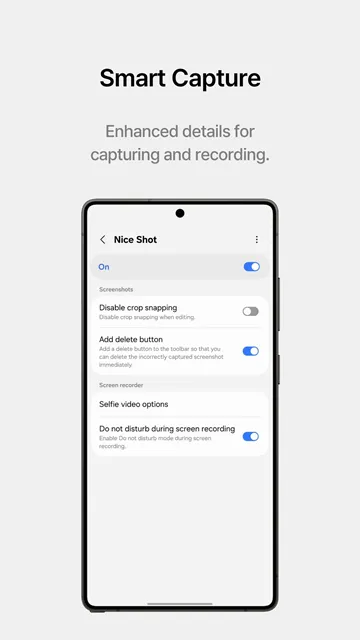
Samsung Nice Shot improves how you capture your mobile screen. Many mobile users want advanced tools for their screenshots. This specialized software adds excellent features to your Samsung device. You can customize your settings quickly. Consequently, your daily productivity will increase.
Traditional systems only offer basic tools. However, this app unlocks hidden potential in your hardware. You can capture clean images without stress. Additionally, you can record high-quality videos instantly. The setup process remains simple for everyone. You do not need expert knowledge to use it.
This guide covers everything you need to know about this tool. We will explain its features and installation steps. You will learn how to maximize your device performance.
What Is Samsung Nice Shot?
Samsung Nice Shot is a powerful utility designed for Galaxy smartphones. It belongs to the famous Good Lock system ecosystem. This tool focuses entirely on screen captures. It gives you precise control over your media files. For example, you can choose between different file types. Standard phones usually save images in one format. However, this app lets you select PNG or JPG formats easily. PNG files preserve the highest quality possible. Meanwhile, JPG files help you save local storage space. You can change these formats with a single tap.
Furthermore, you can manage your file formats with these options:
- Choose PNG format for detailed graphics.
- Select JPG format to save storage space.
- Toggle formats instantly inside the layout.
Furthermore, Samsung Nice Shot alters how your device records videos. You can capture internal sounds without any issues. This feature helps creators who record phone tutorials. You can also capture external audio via your microphone. Therefore, you can add your voice to the recording directly. The system mixes both audio sources smoothly. It maintains high stability during long recording sessions. Your smartphone will not experience lag. This tool operates efficiently in the background. It manages your system resources carefully. Consequently, your device remains cool and fast. Many users prefer it over basic software options. It adds real value to your mobile experience. It makes screen capturing truly enjoyable.
Key Features of This Screen Utility
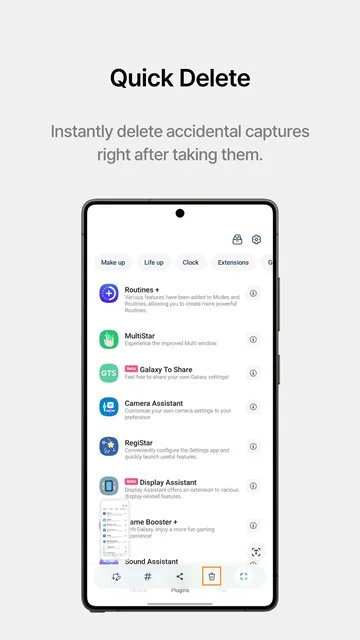
This screen utility provides several advanced options for daily media management. First, it introduces an automatic deletion tool. This feature changes how you share screenshots. When you send an image to a friend, the app deletes it immediately. Therefore, your gallery remains clean. You do not have to delete old files manually. This automation saves time and keeps your storage free.
Second, the app includes a customizable quick panel shortcut. You can add the recording button to your notification shade. This layout allows you to start recording instantly. You will never miss an important moment on your screen. Third, you can adjust the video quality settings manually. The software supports multiple resolution options. You can select maximum quality for professional video projects. Alternatively, choose lower resolutions to create smaller files. This option helps when sharing videos via messaging apps.
You can select from multiple audio modes:
- Silent mode for quiet captures.
- System sound mode for clear media.
- Microphone mode for voice narration.
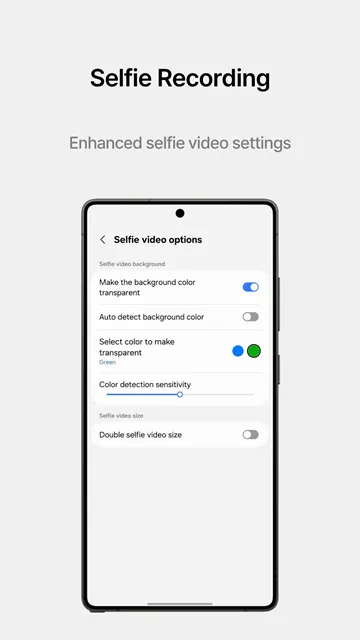
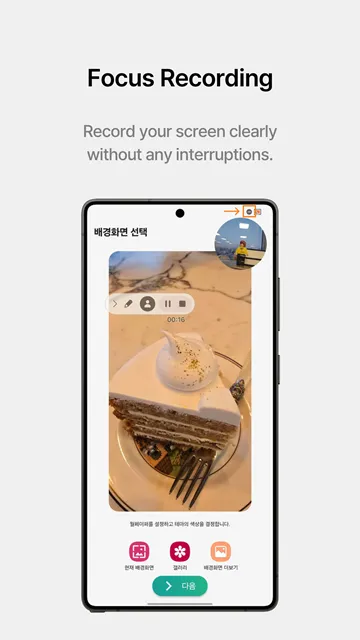
Finally, you can activate the front camera during screen recording. A small circle displays your face over the display content. You can move this circle anywhere you want. This feature benefits educators and video game players. You can explain your on-screen actions in real time. The app synchronizes your face video with the system audio perfectly. It provides a complete recording suite without extra cost. It handles all basic recording tasks flawlessly.
Look closely at the interface options shown in the image above. You can see the dedicated toolbar that appears after taking a screenshot. The highlighted trash icon represents the automatic delete function. This tool simplifies your workflow by removing files right after sharing. You can also use the hashtag icon to organize your pictures quickly. This clear interface makes media management straightforward.
How to Download Samsung Nice Shot
You can download Samsung Nice Shot easily through several methods. Many users prefer downloading the APK file directly. If you manage an APK download site, you know this method is very popular. First, open your preferred web browser. Navigate to a secure download platform online. Search for the latest version of the file. Ensure the file matches your system software version. Next, click the download button to save the file.
Before opening the installer, you must adjust your phone security settings. Open your primary settings menu. Locate the security or privacy section. Enable the permission for unknown sources. This setting allows your phone to install files from outside official stores. Do not worry about this warning. Secure files are entirely safe for your system.
Next, open your file explorer app. Find the downloaded APK file in your downloads folder. Tap the file to launch the installation wizard. Select the install option to proceed. The installation process takes less than one minute. Once finished, you can find the utility inside your app drawer. Alternatively, open it through the Good Lock launcher environment. You can now configure your preferences immediately. The tool operates immediately without requiring a full device reboot.
Advanced Tips for Better Recording
You can get better results by adjusting a few advanced options. First, open the configuration menu inside the utility. Locate the video saving directory. You can change this path to an external memory card. This adjustment prevents your internal memory from filling up quickly. Large video files will save directly to your microSD card.
Second, utilize the screen writing tool during your recording sessions. This tool allows you to draw on your display while recording video. You can choose various options to customize your drawings:
- Multi-color paint brushes.
- Quick undo button.
- Variable brush thickness.
This option helps you create clear instructional content. Your viewers will follow your instructions much easier.
Third, adjust the audio recording parameters based on your environment. If you work in a noisy room, select system sound only. This option blocks external noises completely. Your video will only feature clear internal game audio. If you want to narrate, find a quiet space. Then, enable both mic and system audio options. This setup produces the cleanest voiceovers possible. Finally, turn on the do not disturb mode before recording. This action blocks incoming phone calls and text popups. Your video will look clean and professional. It protects your sessions from sudden interruptions.
Why Choose Samsung Nice Shot Over Competitors
Samsung Nice Shot offers distinct advantages when compared to generic alternative utilities. Many free recording tools from online stores contain heavy advertisements. These ads interrupt your work constantly. Furthermore, they can drain your device battery fast. This official utility contains no third-party advertisements at all. It provides a clean environment for your daily tasks. It runs efficiently without wasting precious system memory.
Additionally, generic tools often add large watermarks to your videos. These watermarks look unprofessional and block important visual data. This software never places watermarks on your personal creations. Your videos remain completely clean from start to finish. You own your content fully.
Security remains another critical reason to choose this official tool. Third-party options often request unnecessary system permissions. For example, they might ask for your location or contacts list. This utility only accesses your screen and storage. It protects your personal privacy completely.
Consider these built-in security values:
- No external data transmission.
- Local storage isolation.
- Zero ad tracking software.
It stores all media files locally on your phone hardware. No data travels to external company servers. Therefore, you can trust it with sensitive workspace information. It integrates perfectly with your existing operating system security. It protects your files against data leaks.
Conclusion
This advanced utility upgrades your screen capturing experience completely. It offers features that standard options omit. You can save storage space with auto-delete options. Furthermore, you can create clean video content without advertisements. The setup takes very little time. It remains a reliable choice for every Galaxy device owner. Download it today to improve your workflow.